The Hub
Use the Hub, a side panel next to your page, to send Boxes, copy Rooms and media, and give content to other users.
- Progetti
- ProductionArchive
- Ruoli
- ManagerOperator
- Aggiornato
The Hub is a side panel. It stays next to the page you are working on, so you can move content without leaving the page. Use it to:
- send content to other users in a Box (or a Delivery in Archive Projects)
- copy Screening Rooms and media into a new Box
- give the ownership of content to another user with the Shelf
Open and close the Hub
Click the Hub icon on the right side of the top bar.

The Hub opens on the right. To close it, click the x at the top of the panel. When you open the Hub again, it shows the tab you used last.
The Hub tabs
The tabs are at the top of the panel. The tabs depend on the type of Project.
| Tab | What it shows | Production Projects | Archive Projects |
|---|---|---|---|
| Works | The Works of the Project | No | Yes |
| Incoming | The Boxes or Deliveries you receive | Yes | Yes |
| Outgoing | The Boxes or Deliveries you send | Yes | Yes |
| Gallery | The media of the Project Gallery | No | Yes |
| Rooms | The Screening Rooms of the Project | Yes | Yes |
| Shelf | The content that you give or receive with the Shelf | Yes | Yes |
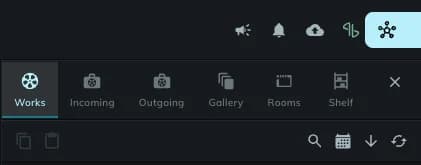
In an Archive Project, the Hub has six tabs.
When a tab has no content, it shows Nothing to show.
Incoming and Outgoing
Incoming lists the Boxes (or Deliveries) that other users send to you. Outgoing lists the ones that you send.
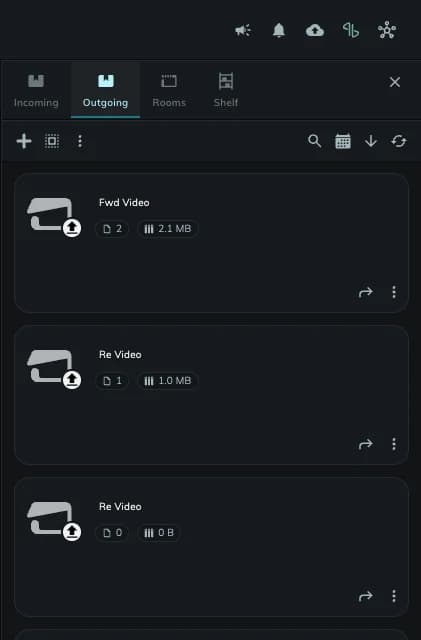
On the Outgoing tab of a Production Project:
- Click the plus button (+) to create a new Box. Enter a name and click Create.
- Click the options button (⋮) of the toolbar and select Paste into a new Box to put copied items in a new Box.
- Click the arrow button on a card to go to the list of Boxes. The button shows Go to Boxes / Outgoing.
- Click the options button (⋮) of a card to Copy or Delete the Box.
For the full procedure, see Sending a Box.
Rooms
The Rooms tab lists the Screening Rooms of the Project. Each card has an arrow button. It shows Go to Room and opens the Room.
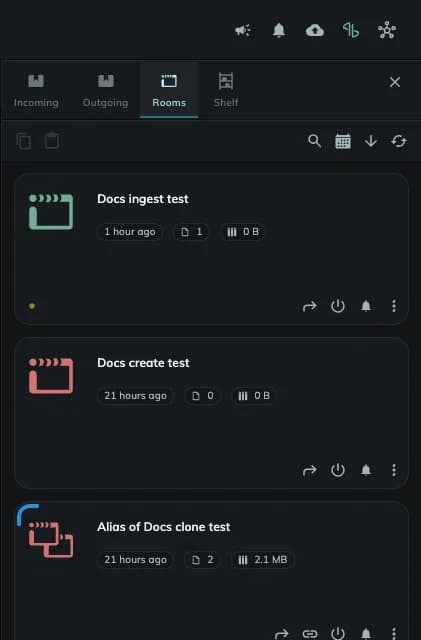
Click the options button (⋮) of a Room card to open this menu:
- Copy
- Room Color
- Watermark...
- Make alias...
- Add to Shelf...
- Settings
- Purge originals
- Delete
Some entries are not available for every Room or role.
Shelf
The Shelf tab lists the Shelf items that you give and receive. For more information, see The Shelf.
Move content with the Hub
You can move content with drag and drop. When the Hub is open, drag items to the Hub and from the Hub. You can drag media, Screening Rooms and (in Archive Projects) Works.
You can also open the Hub while you drag:
- Pick up a media, a Room or a Work from the pool.
- Drag it onto the Hub icon. The Hub opens.
- Keep the item in your hand. Move it over the tabs of the Hub to switch between them.
- Release the item on the target.
You can also copy an item and paste it into a new Box. Select Copy in the options menu of the item. Then, in the Outgoing tab, select Paste into a new Box from the toolbar menu.
Select more than one item
- To add items to the selection, press Cmd (Mac), Ctrl (Windows) or Shift and click each item.
- To select many items with a frame, press Option and Shift and drag the pointer.
The footer of the Hub shows how many items you selected.
Search, sort and refresh
The toolbar of each tab has these buttons on the right:
- the search button
- the sort button (a calendar icon) and the sort direction arrow
- the refresh button
To learn more, see Filtering and sorting lists.
Articoli correlati
Mnemonica user interface
Learn the recurring parts of the Mnemonica interface, such as the top and bottom bars, the user menu, lists, toolbars and selection.
Screening Rooms media management
See the actions you can run on one or more media in a Screening Room, such as copy, move, download, and delete.
Adding Screening Rooms media to a Box
Drag media from a Screening Room onto a Box and choose the version and the folder structure.
Il Media pool e l'Inspector dei Work
Sfoglia, filtra e visualizza in anteprima gli asset delle Version selezionate, leggi i loro dettagli e checksum nell'Inspector e inviali ad altri utenti.