Linking the Mnemonica app
You have a strong session, in your browser or in the app on another device. Now you want the app on a new phone or tablet to have the same privileges, for example to open Strong Projects.
- Projects
- ProductionArchive
- Updated
A new device cannot become strong alone: another strong session must promote it. This guide shows you how. It takes about a minute.
Before you start
- The new phone or tablet, with a fingerprint reader, face unlock or a PIN.
- A strong session on one of these:
- the web app: the padlock next to your avatar is green and closed. If it is not, read Basic and strong sessions.
- the Mnemonica app on another phone or tablet.
Step by step
Select where you get the code.
From the web app
Install the app on the new device
Get the Mnemonica app from the App Store or Google Play.
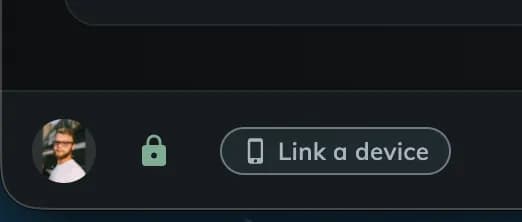
Find the button next to your avatar
In the web app, look at the bottom left of the dashboard. Next to your avatar and the padlock, there is a phone button: Link the Mnemonica app.
The words show for a few seconds. Then only the phone icon stays. Point at the icon to see the words again.

If a device is already linked to your account, the button shows Link a device.
Get the code
Click the button. The web app shows a six-digit code. The code expires after 2 minutes. If it expires, click New code.
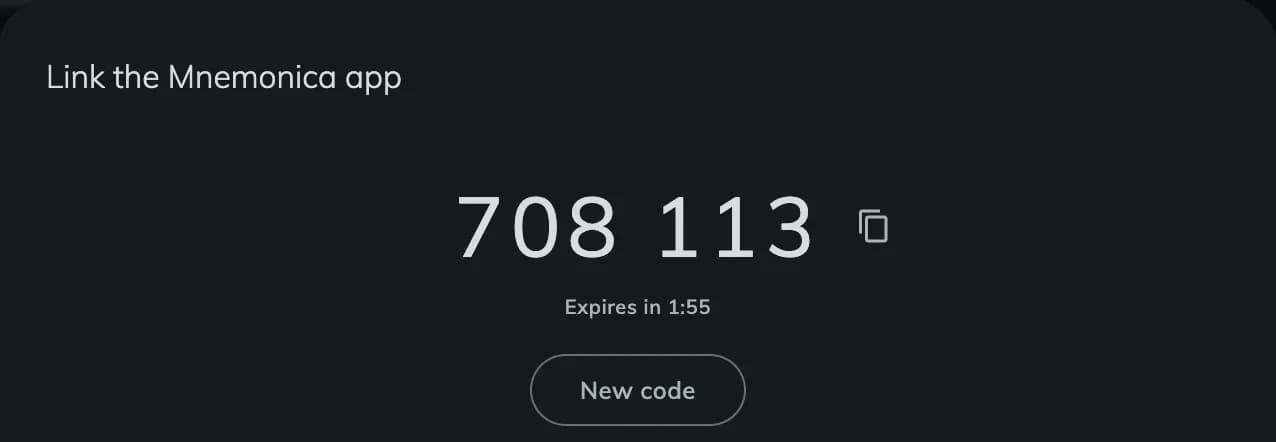
Keep this window open.
Open the Mnemonica app on the new device
If you are not signed in, tap I have a code on the sign-in screen.
If you are signed in with a basic session, open the user menu. Tap Enforce your security. The app asks you to add a passkey or to use a code. Choose the code.
Type the code
Type the six-digit code from the web app. Tap Link this device.
Check your name
Make sure that the app shows your name.
Enable biometrics
Tap Enable biometrics. The app creates a key for this device.
From then on, the app keeps you signed in with a strong session. The session stays active for 365 days.
See the confirmation in the web app
The web app shows App linked and the name of the device. Click Done.
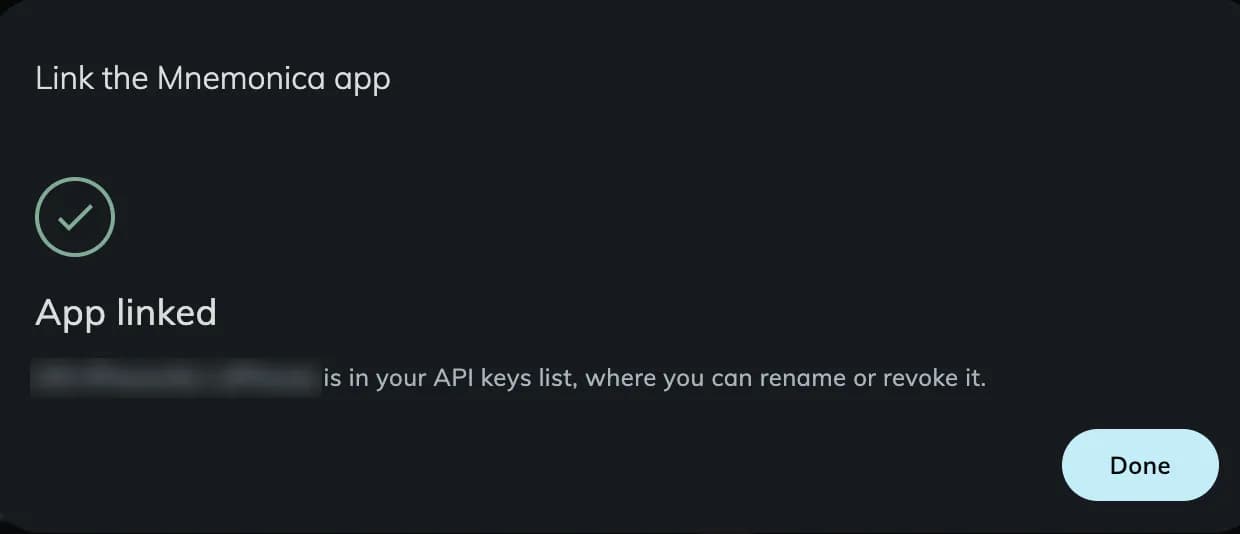
You can rename or remove the device in Preferences / Security, on the API keys and devices tab.
From the app
Install the app on the new device
Get the Mnemonica app from the App Store or Google Play.
Open Link another device on the linked phone
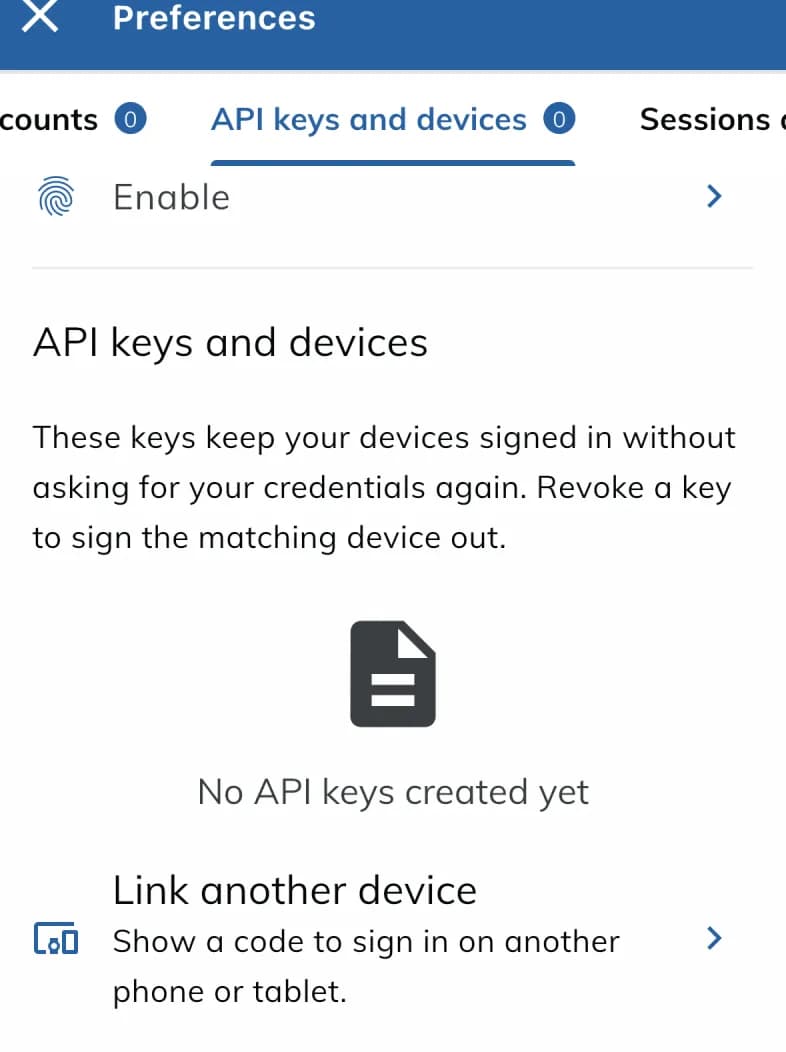
In the app on the phone that is already linked, open the user menu. Tap Link another device.
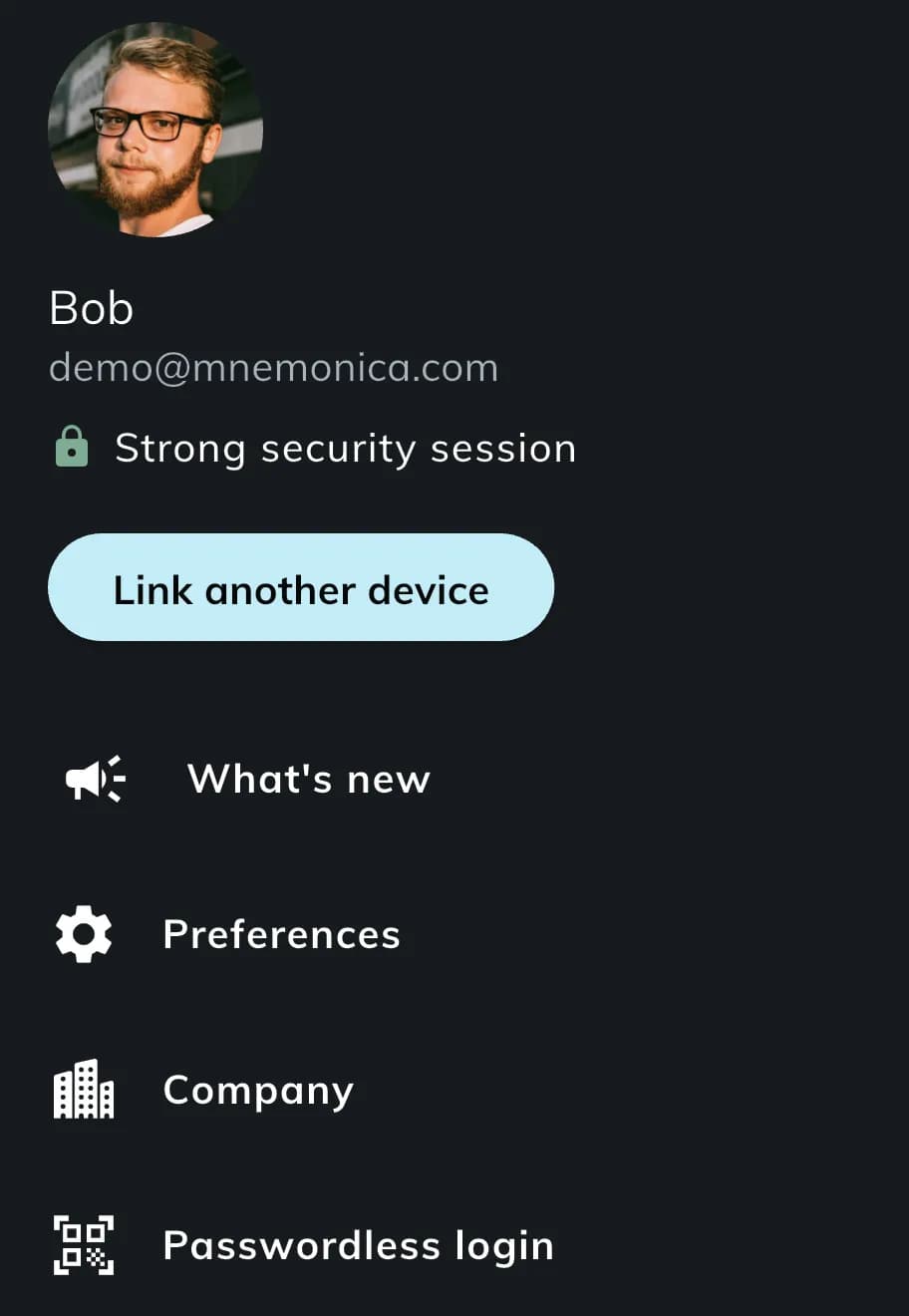
You can also open Preferences / Security, select the API keys and devices tab and tap Link another device.
Get the code
The app shows a six-digit code. The code expires after 2 minutes. If it expires, tap New code.
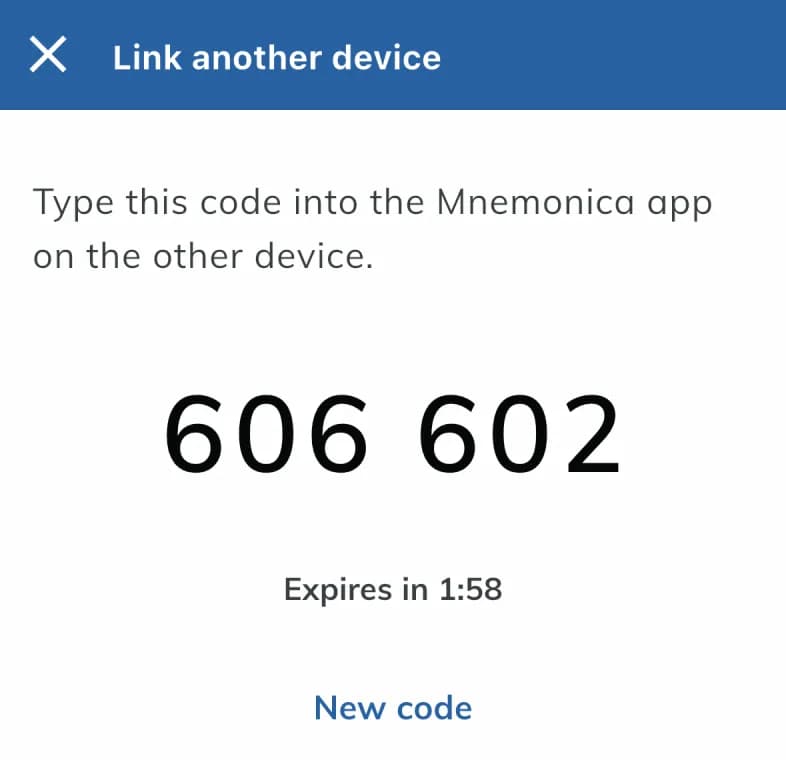
Keep this screen open.
Log in with the code on the new device
Open the Mnemonica app on the new device. If you are not signed in, tap I have a code on the sign-in screen.
If you are signed in with a basic session, open the user menu. Tap Enforce your security. The app asks you to add a passkey or to use a code. Choose the code.
Type the code
Type the six-digit code from the linked phone. Tap Link this device.
Check your name
Make sure that the app shows your name.
Enable biometrics
Tap Enable biometrics. The app creates a key for this device.
From then on, the app keeps you signed in with a strong session. The session stays active for 365 days.
If something goes wrong
The button shows only in a strong session. If the padlock is open, your session is basic. Read Basic and strong sessions. On a small window, the button is only a phone icon.
You are signed in to the app. Open the user menu. Tap Enforce your security. Then choose the code.
A code works for 2 minutes and one time only. Get a new code with New code. Type the new code in the app.
You asked for a code on another screen or device. Use that code, or get a new one with New code.
Do not continue. The device that shows the code is signed in to a different account. Sign out of it and sign in with your account. Then get a new code.
Related articles
Add a device
Get a strong session on a new computer, browser, phone or tablet. A device that is already strong approves the new one.
Mnemonica Mobile App
The Mnemonica mobile app does everything the web app does, except downloading files. Learn which operating systems it needs and how it becomes a strong sign-in method when you enable biometrics.
Basic and strong sessions
Learn what basic and strong sessions are, how you protect your first device, how you make your other sessions strong, and what to do if you lose a device.
Lost device and reset
Lost the phone or computer that holds your strong method? Reset your strong methods, wait 24 hours and start again.
Cinema delegates: download a DCP and its KDM
A distributor sent your cinema a film through Mnemonica. Register, install Mnemonica Gate, then download the DCP and the KDM for your projector.
Getting started with Mnemonica
New to Mnemonica? Learn what the platform does, what you need on your devices, and how to keep access to your account.