Mnemonica Mobile App
The Mnemonica mobile app does everything the web app does, except downloading files. Learn which operating systems it needs and how it becomes a strong sign-in method when you enable biometrics.
- Projects
- ProductionArchive
- Updated
Mnemonica provides a mobile app for Android and iOS. Install it from the official stores.
| iOS | Android |
|---|---|
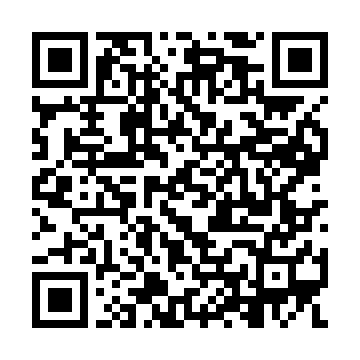 | 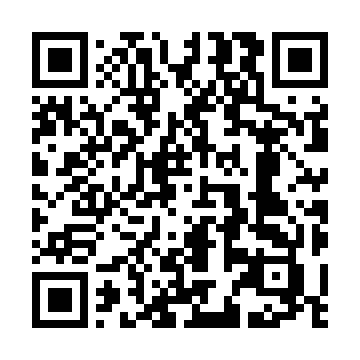 |
The app does everything that the web app does, except downloading files. You can also upload media from your files and from the camera of your phone or tablet.
You cannot download files in the app. To download a file, use the web app on a computer.
When biometrics is enabled, the app unlocks the same way as your phone: with your fingerprint, your face or your PIN.
System requirements
Minimum supported OS:
- iOS 15.0
- Android 7, API 25
You cannot install the app on a jailbroken device.
For the other requirements, see System requirements.
Mnemonica App & account security
When you sign in to the app with an email link, Google or Apple, your session is basic, as on the web. The app becomes a strong sign-in method when you tap Enable biometrics on your phone. Biometrics uses the way you unlock your phone: your fingerprint, your face or your PIN.
When you tap Enable biometrics, the app creates a key for this device. You find it in Preferences / Security, in the API keys and devices tab. Nobody can read the key from your phone. From then on, the app keeps you signed in with a strong session.
If your account already has a passkey, link the app first. Then tap Enable biometrics. See Linking the Mnemonica app.
When biometrics is enabled, you can use the app to:
- Sign in to a computer with a strong session. Scan the QR code on the sign-in page, then approve on your phone. See Sign in to Mnemonica.
- Add a new phone or tablet. An existing strong device shows a one-time code, and you type it on the new device. Then tap Enable biometrics on the new device. See Add a device.
- Get a notification at once if somebody resets your strong methods. See Lost device and reset.
If your phone has no sensor and no PIN, you cannot enable biometrics. Your sessions in the app stay basic.
HDR support
The Mnemonica app can screen HDR10 content on Apple and Android devices that are HDR-ready.
It is easy to identify the Apple devices that can screen HDR content. In the Android world, manufacturers differ. Even if your device can screen HDR content, the result on the screen can vary with the NITS and contrast values of the device screen. For details, see the documentation of the manufacturer.
To learn more about HDR in Mnemonica, see Working with HDR.
Related articles
Mnemonica user interface
Learn the recurring parts of the Mnemonica interface, such as the top and bottom bars, the user menu, lists, toolbars and selection.
Sending a Box
Create a Box, fill it with files, seal it and send it to one or more recipients.
Notifications
Learn how Mnemonica notifies you in the app, by email and by push, and how to mute Projects and Screening Rooms.
Screening Room status
Open or close a Screening Room for its audience, set an opening or closing time, and learn how guests are told.