Notifications
Learn how Mnemonica notifies you in the app, by email and by push, and how to mute Projects and Screening Rooms.
- Projects
- ProductionArchive
- Updated
Notifications keep you updated on new content, user interactions, and more. With the notification settings, you choose which information you receive.
Mnemonica uses three channels to communicate with the users:
- In-app notifications
- Emails
- Push notifications on mobile devices.
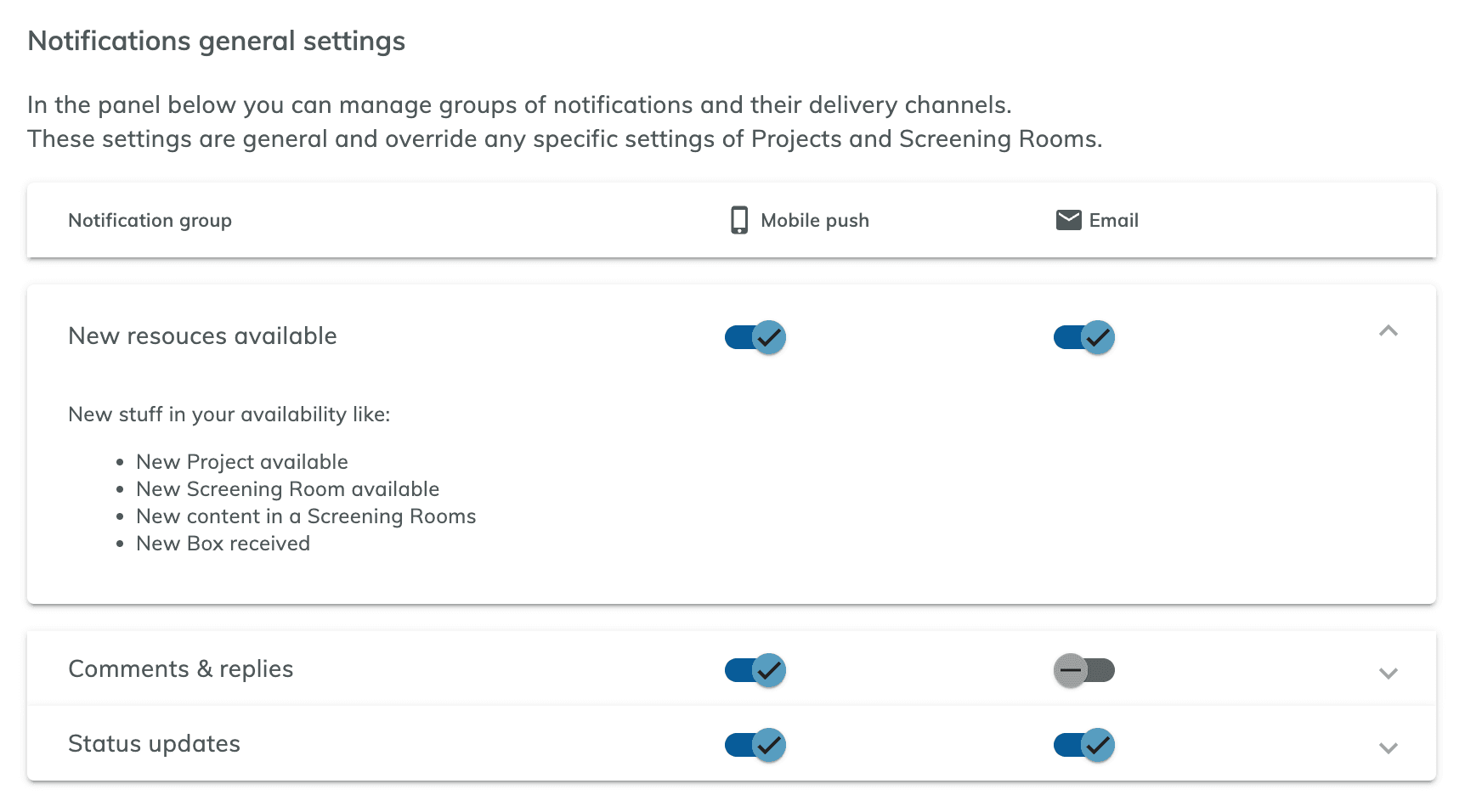
Notification general settings
To open the settings of the notification channels, click your avatar and select Preferences in the user menu. In the Notification general settings panel, choose which group of notifications you receive in which channel. You can mute the email channel and the mobile push channel separately for each group of notifications.
The Notification Channels settings are general and high-level. They affect the global behavior of the communication system.
Mute Projects and Screening Rooms
The Notification general settings panel sets the general routing of the notification groups. For a finer control, you can mute entire Projects and single Screening Rooms.
To mute a Project or a single Screening Room, click the bell button on its card on the dashboard. If you mute a Project, Mnemonica mutes all its push and email notifications, and all the Rooms in the Project appear muted.
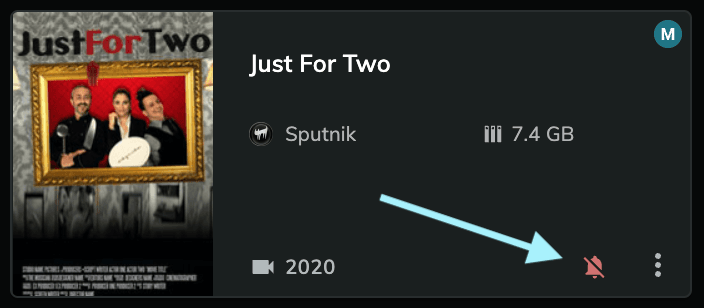
If you mute only one or more Screening Rooms, you reduce the notifications of those Rooms only.
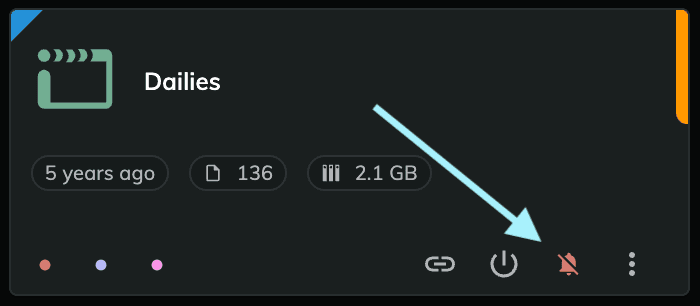
If you mute one or more Screening Rooms and then mute the entire Project, unmuting the Project restores the mute settings of the Rooms.
In-app notifications
In your browser, in-app notifications appear in a sidebar panel and in the User/Project dashboard. To open the panel, click the bell icon on the right side of the top bar. To clear the unread marks, click Set all as read. You cannot turn off in-app notifications.
- A red badge with a number shows the unread notifications.
- Click a notification to go to the related object.
In-app notifications appear in browsers and in the mobile app. To keep the noise low, only a few of them become push notifications and emails.
In-app notifications are ephemeral. Mnemonica removes the notifications that are older than 60 days.
Push notifications on your smartphone
To receive push notifications on your smartphone, make sure that you allow Mnemonica to send them. Check the notification settings of your device, and choose how Mnemonica notifications appear.
In the Mnemonica mobile app for iOS or Android, tap your avatar on the home page. Then select Notifications Settings from the user menu.
Push notifications work only with an internet connection.
New content available notifications
Guests admitted to the audience of a Screening Room receive a notification when new content is available in the Media Pool. Mnemonica does not send the notifications in real time after each upload. Every two hours, an automatic routine checks every Room for new content. If it finds any, it sends a notification to the Guests.
Team Members receive New content available notifications only for Collaborative or Ingest Rooms.
Related articles
Comment on media
Post comments on a frame or on a whole clip, draw on frames and pictures, reply to threads and move between comments on the Player page.
The Personal Dashboard
What you see on the Home page after you sign in: your recent Projects, their latest notifications, and shortcuts.
Distributing dailies
Send each day's dailies to several audiences, each with its own watermark and its own Days, from one Master Room and its Alias Rooms.
Submitting content to an Ingest Room
Upload your clips to the uploading slots of an Ingest Room, and learn how to retry or replace an upload.