Cinema delegates: download a DCP and its KDM
A distributor sent your cinema a film through Mnemonica. Register, install Mnemonica Gate, then download the DCP and the KDM for your projector.
- Projects
- Archive
- Roles
- Guest
- Updated
You work for a cinema, and a distributor sends you a film through Mnemonica. The film comes as a DCP, the package of files that your cinema server plays. A KDM is the key that unlocks the DCP on one projector, for a fixed period. This guide takes you from the invitation email to the DCP on your drive and the KDM for your projector.
Before you start
- A computer that meets the system requirements, with enough free space for the DCP.
- The invitation email from Mnemonica, if this is your first time.
Step by step
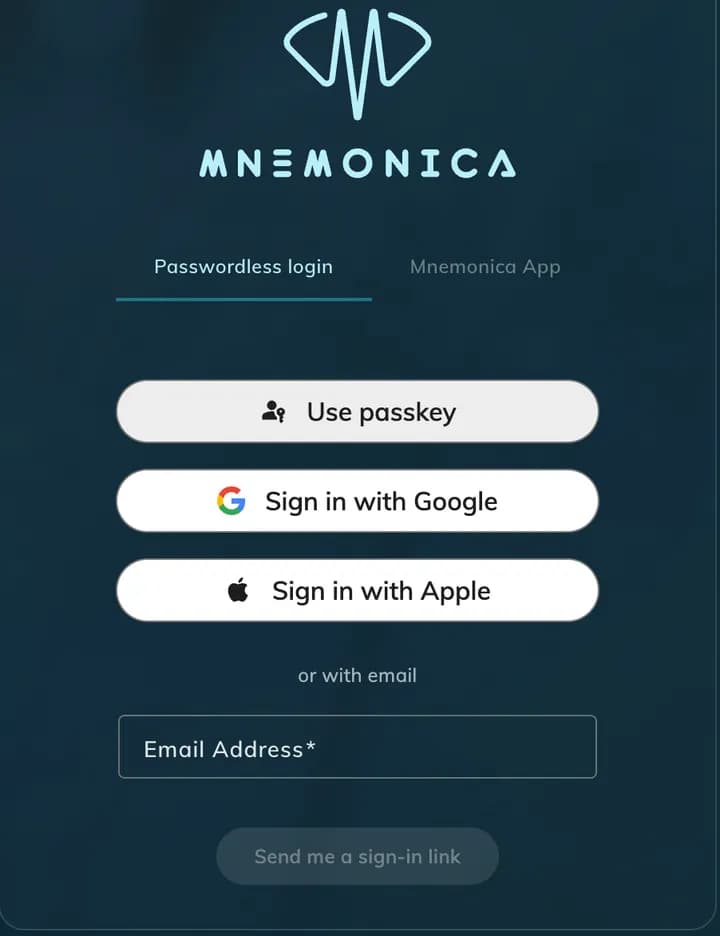
Register or sign in
First time? Open the invitation email. Click the link in it. Follow the steps in Registering your Mnemonica account.
Do you already have an account? Open Mnemonica in your browser and sign in. Read Signing in to Mnemonica for each method.
Install Mnemonica Gate
A DCP is large. Mnemonica Gate is the desktop app that downloads it fast and continues after an interruption. If the Gate is already on your computer, go to the next step.
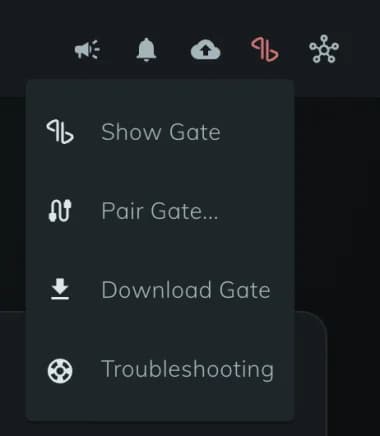
Click the Gate icon in the top bar. Choose Download Gate. Then click the download button for your system.
Open the downloaded file to install the Gate. Read Install Mnemonica Gate for Mac, Windows and Linux.
Pair the Gate with your browser
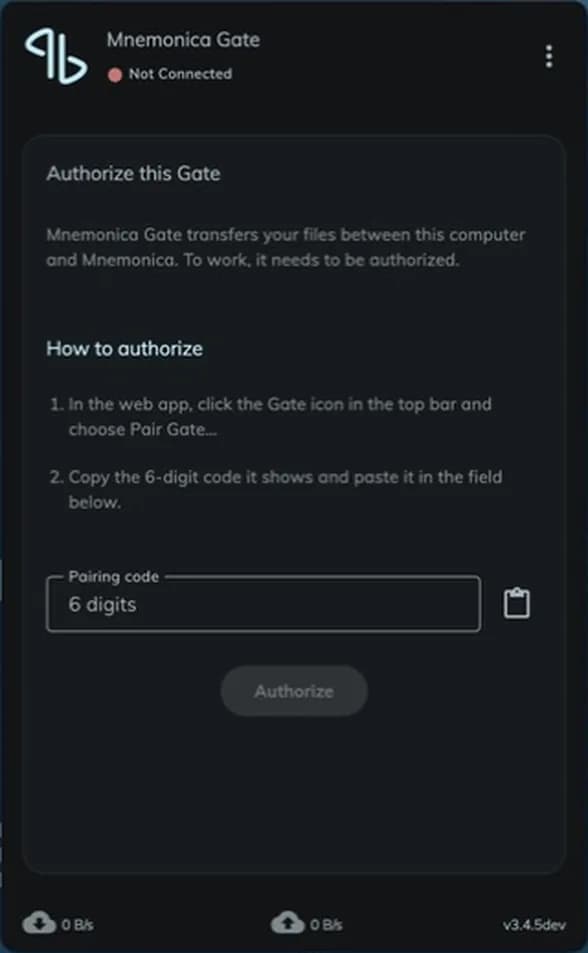
The Gate opens on the Authorize this Gate screen.
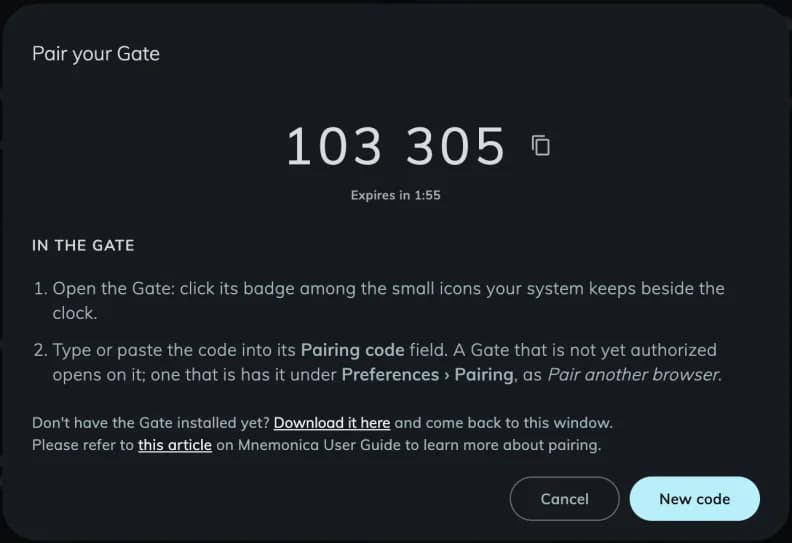
In the browser, click the Gate icon and choose Pair Gate.... Copy the 6-digit code.
Paste the code in the Gate. Click Authorize. The web app shows Gate connected.

If the code does not work, read Pairing the Gate with browsers.
Find the Delivery with the DCP
When the DCP is ready for you, Mnemonica sends you a notification. Click the bell icon in the top bar. Then click the notification.
You can also find the Delivery yourself:
- Open the Project.
- Click Deliveries in the bottom bar.
- Select the Incoming tab.
- Select the Delivery.
The Delivery shows the days before it expires, the number of files and the size.
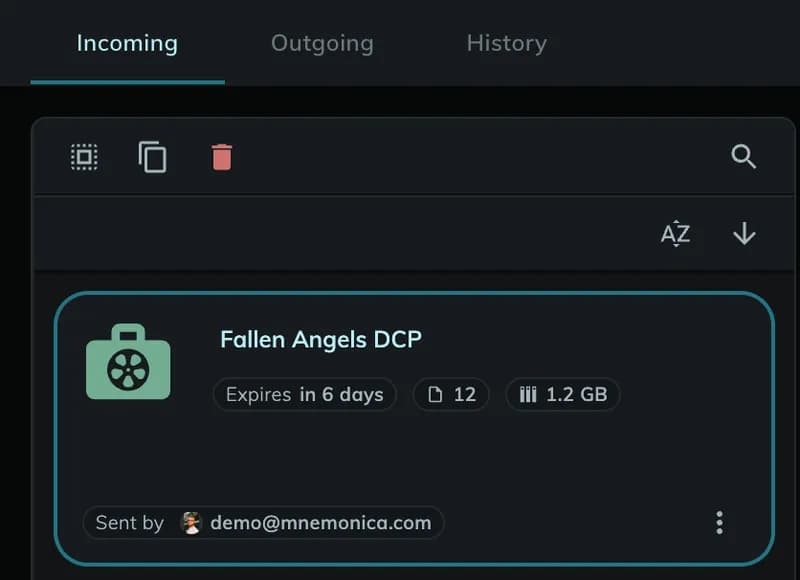
Read more in Receiving a Delivery.
Download the DCP
Select the Delivery. Click the options button (⋮) at the top right of the Delivery. Choose Download Delivery.
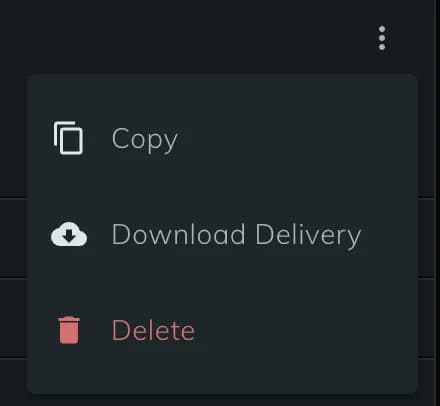
If the web app asks, select the folder for the DCP.
The Gate downloads all the files and keeps the folders of the DCP. To see the progress, open the Gate.
If the Delivery shows File-by-file download only, the Gate is not connected. Go back to step 2 or step 3.
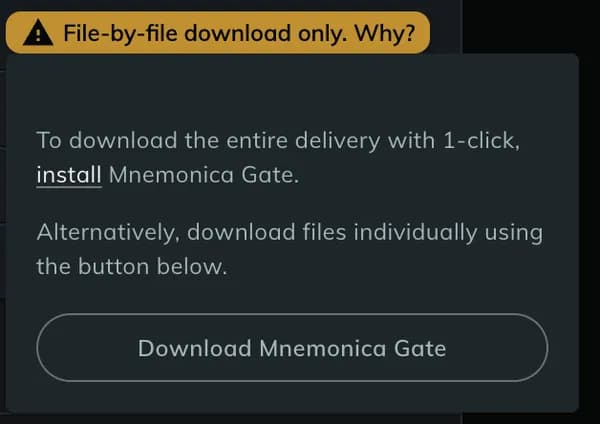
Read where the Gate saves downloaded files and how to manage your transfers.
Download the KDM
When the distributor sends you a KDM, the KDMs module becomes available to you. Click KDMs in the bottom bar of the main dashboard. On the Active tab, find the KDM by its CPL name.
Click the options button (⋮) on the row. Choose Download.
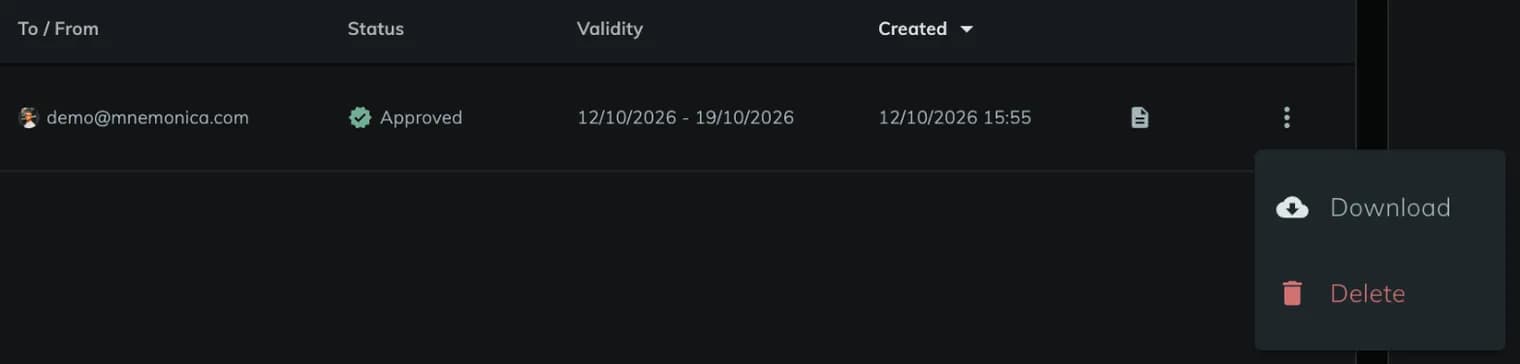
Read more in Download a KDM sent to you.
A Delivery expires. Download the DCP before its expiry date. A KDM works only on the projector it was made for, and only between its Validity dates.
If something goes wrong
- The download stopped. Read what the Gate does when a transfer stops.
- The Gate does not connect. Read Pairing the Gate with browsers. If your network uses a proxy, read Use the Gate with a proxy server.
- You do not see KDMs in the bottom bar. The module appears only after somebody sends you a KDM. Ask the distributor to send it.
Related articles
Registering your Mnemonica account
Somebody has invited you to a Project. This page tells you what happens next. It takes about a minute.
Install Mnemonica Gate
Download and install Mnemonica Gate on Mac or Windows, check for updates, and set its Preferences.
Receiving a Delivery
Find a Delivery that somebody sent you in an Archive Project and see its content.
Request a KDM
As an Operator or a Power Guest, request a KDM for a projector and follow it until a Manager approves it. As a Guest, download the KDMs sent to you.
New Mnemonica sign-in: guide for Guests
From 17 October 2026, you sign in to Mnemonica in a new way.
Linking the Mnemonica app
You have a strong session, in your browser or in the app on another device. Now you want the app on a new phone or tablet to have the same privileges, for example to open Strong Projects.