Pairing the Gate with browsers
Pair Mnemonica Gate with your browser using a 6-digit code, check the pairing status, and fix a Gate that cannot connect.
- Projects
- ProductionArchive
- Updated

After you install Mnemonica Gate, pair it with your browser. When the Gate is paired, it does all the file transfers.
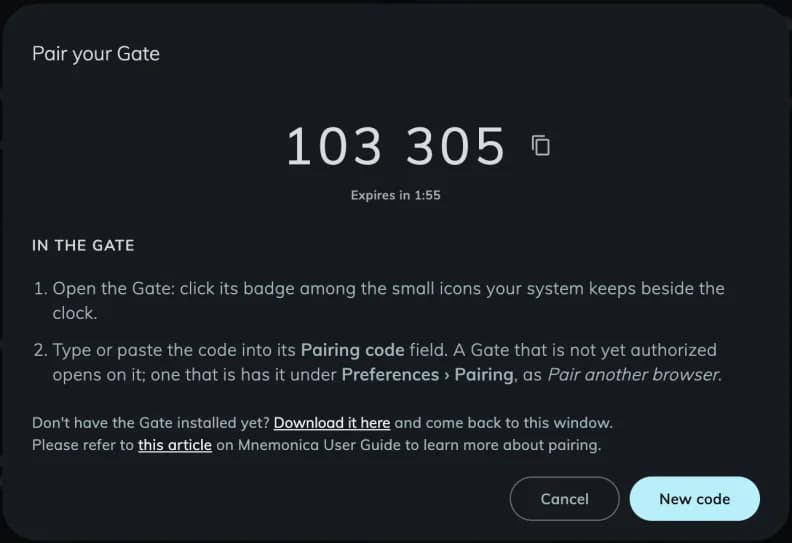
To pair, copy a 6-digit code from the web app into the Gate. The code is valid for 2 minutes. Use the same account in the browser and in the Gate. You need a strong session in the browser.
Pair a new Gate
A new Gate opens on the Authorize this Gate screen. The status under the Gate name is Not Connected.
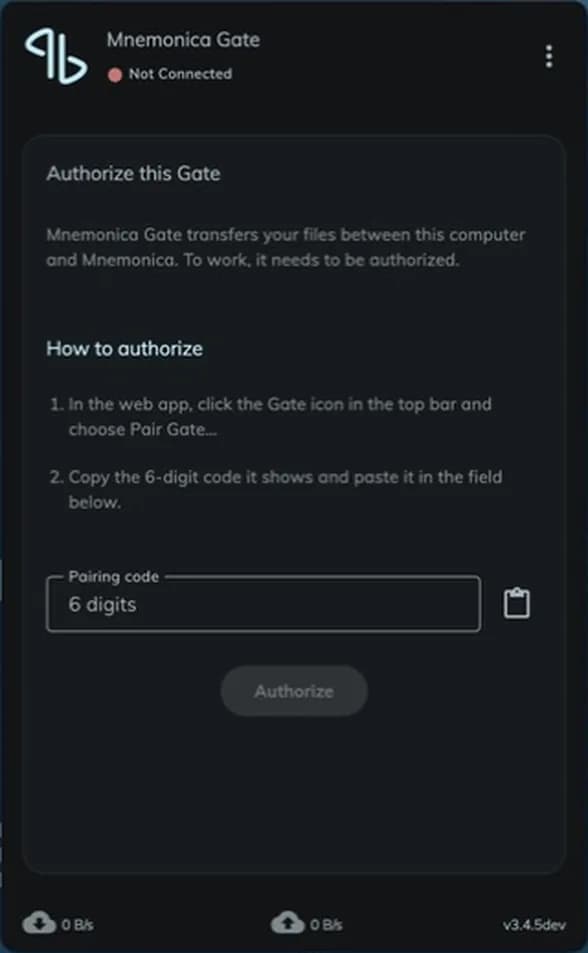
Get a code in the web app
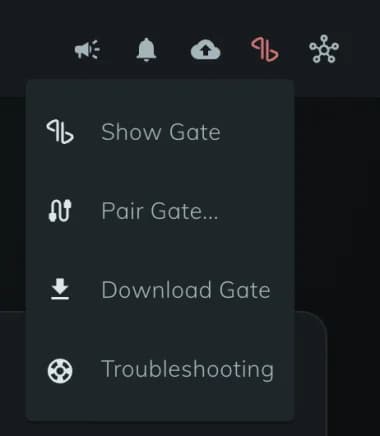
Sign in to Mnemonica in your browser. Click the Gate icon in the top bar and choose Pair Gate.... The Pair your Gate dialog shows a 6-digit code. Click the copy button beside the code.
Type the code in the Gate
Open the Gate. Click its icon in the menu bar (Mac) or in the system tray (Windows). Click the paste button beside the Pairing code field. You can also type the code in the field.
Authorize the Gate
Click Authorize. The web app shows the message Gate connected, and the Gate icon in the top bar turns green.


If the Gate icon stays red after the Gate accepts the code, reload the web page.
If the pairing does not work, the Gate shows one of these messages:
| You see | What to do |
|---|---|
| Code not recognized | Check the code in the web app and try again. If the code expired, click New code. |
| Too many attempts. Try again in N s. | Wait for the countdown to end. |
| Could not reach the server | Check your connection and your proxy settings. Then try again. |
| This code was created by another account | Deauthorize this Gate. Then authorize it again with the other account. |
| The API key used by this Gate has been deleted or revoked | Pair the Gate again from the web app. |
Pair another browser
You can pair many browsers with the same Gate.
Get a code in the other browser
Sign in to Mnemonica in that browser. Click the Gate icon in the top bar and choose Pair Gate.... Click the copy button beside the code.
Type the code in the Gate
In the Gate, click the options button (⋮) and choose Preferences. Open the Pairing tab. Under Pair another browser, click the paste button beside the Pairing code field. You can also type the code in the field. Click Pair.
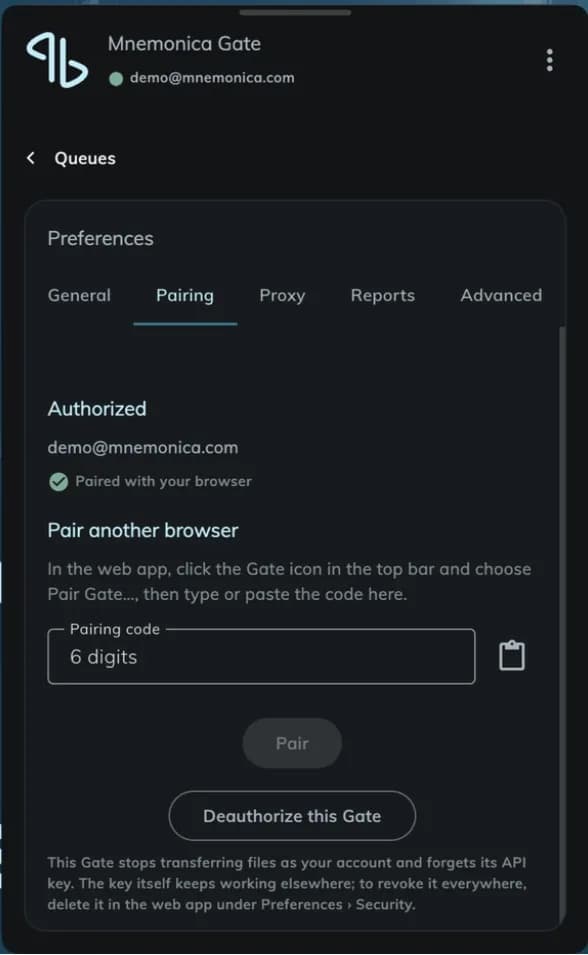
The Pairing tab also shows the account of the Gate and the message Paired with your browser.
Check the pairing status
Look at the color of the Gate icon in the top bar of the web app:
- Green: the Gate is paired and connected.
- Orange: the Gate is not paired.
- Red: the Gate is not connected.
The Gate also shows its status under its name. A green dot and the account email mean that the Gate is connected. A red dot and Not Connected mean that the Gate is not authorized or cannot connect.
If the Gate cannot connect
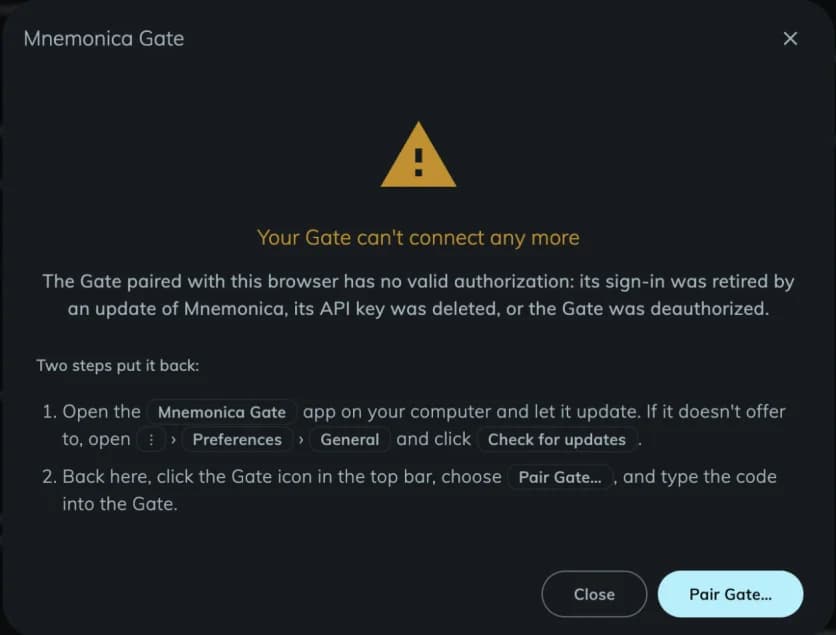
The web app can show the message Your Gate can't connect any more. This means that the Gate has no valid authorization. One of these events caused it:
- An update of Mnemonica retired the sign-in of the Gate.
- Someone deleted the API key of the Gate.
- Someone deauthorized the Gate.
Update the Gate
Open the Gate and let it update. If it does not offer an update, open the Preferences and click Check for updates in the General tab.
Pair the Gate again
In the web app, click the Gate icon and choose Pair Gate.... Type the new code in the Gate.
Until the Gate connects, it shows Connecting... and a Restart button. If the Gate icon is red, also check these points:
- Your internet connection works.
- The account in the browser and the account in the Gate are the same.
- You did not use Reset sign-in methods in Preferences / Security. This action deletes the key of the Gate. To pair the Gate again, wait 24 hours and add a strong method. Then pair it from your strong session. See Lost device and reset.
If you used Sign out everywhere, the Gate reconnects by itself. You do not need to pair it again.
If the problem stays, read how to reset or remove the Gate.
Deauthorize a Gate
To stop a Gate from working as your account, click the options button (⋮) of the Gate and choose Deauthorize this Gate. You can also click Deauthorize this Gate in the Pairing tab of the Preferences. The Gate forgets its API key. The key itself keeps working elsewhere.
To revoke the key everywhere, open Preferences / Security in the web app and select the API keys and devices tab. Click the options button (⋮) on its row. Choose Revoke. You need a strong session to do this. Each paired Gate has its own key. The key shows the user and computer name of the Gate, and the kind Gate. Read more about API keys.
To keep the pairing when you close the browser window, enable cookies and data saving for mnemonica.io in your browser preferences.
Related articles
Add a passkey
Add a passkey on your computer or your phone, open Strong Projects with your fingerprint, your face or your PIN, and pair the Gate.
Add a Package and upload assets
Create a Package in a Version of a Work, choose its type, and upload files and folders into it. Learn what the Gallery Package does.
Manage your transfers in the Gate
Pause, resume, remove and retry transfers in the Mnemonica Gate window, and read the status messages.
Send a technical report to Mnemonica support
How Mnemonica Gate saves technical reports, what a report contains, and how to send one to support.