About Mnemonica Gate
What Mnemonica Gate is, when to use it, and how it handles uploads and downloads in Screening Rooms and Boxes.
- Projects
- ProductionArchive
- Updated

Mnemonica Gate is our file transfer manager for Mac, Windows, and Linux. It works with the Mnemonica web app to make file transfers faster and safe from failures.
When the Gate is installed and paired, it replaces your browser for file transfers.
We recommend the Gate in these cases:
- You transfer very large archives.
- You transfer nested file structures.
- Your network is not stable.
- You use Mnemonica every day.
Keep the Gate updated. Each time you launch it, the Gate tells you when a new version is available. Read how to update the Gate.
Open the Gate
The Gate runs in the background. By default, it starts with your computer. To open its window, use one of these methods:
- Click the Mnemonica icon in the menu bar (Mac) or in the system tray (Windows).
- Choose Show Gate in the Gate menu of the top bar of the Mnemonica web app.
Click the icon again to hide the window. The window also hides when you click somewhere else. The Gate has no right-click menu, and on a Mac it has no Dock icon.
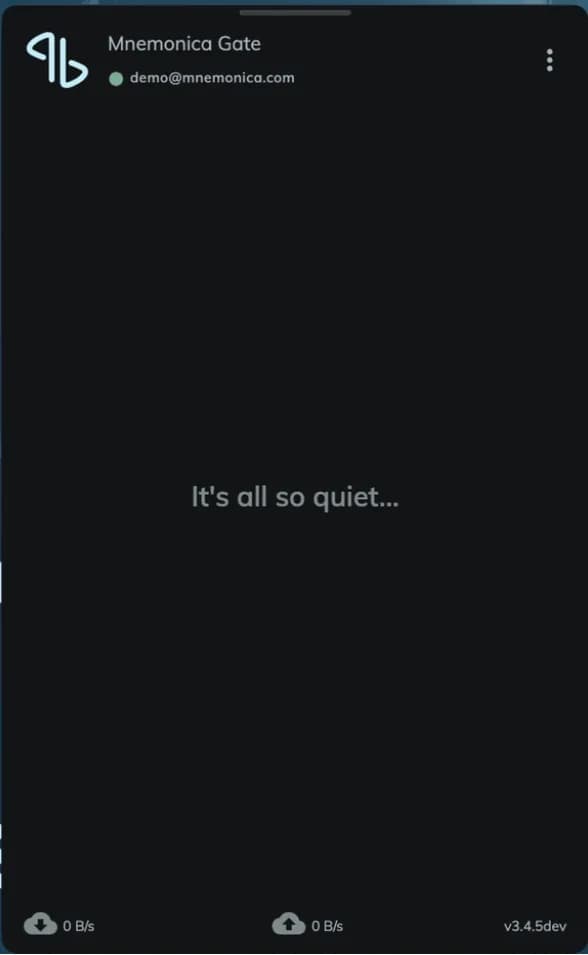
The window shows the account of the Gate under its name, the transfer queues, the current download and upload speed, and the version of the Gate. The tray icon shows if the Gate is connected, and if it is uploading or downloading.
To change the options of the Gate, click the options button (⋮). Read how to set the Preferences.
Start a transfer
Use the Gate everywhere in Mnemonica where you upload or download files. You do not need to do anything special in the Gate. When you start a transfer in the web app, the Gate window opens by itself and takes the transfer. Then you can close the browser window.
Start the transfer in the web app
To upload, use the upload command on the UI (+). Drag and drop files on the Gate. It supports 2000 files at a time.
To download, use the download command in the options menu of the item or select multiple items and use the download command on the toolbar.
With the Gate, you can download complex archives with one click: entire Screening Rooms, Works, Deliveries and Boxes, also with nested folders. The Gate rebuilds the folder structure in the destination folder that you choose.
Follow the transfer in the Gate
The Gate window shows the transfer. To pause, resume or retry it, read Manage your transfers in the Gate.
For the folder and file name rules, read where the Gate saves downloaded files.
If the Gate does not run, you cannot download many files at once. You can download only single files in the browser.
Related articles
Use the Gate with a proxy server
Set the proxy mode of Mnemonica Gate, and see which proxy types and authentication methods it supports.
Send a technical report to Mnemonica support
How Mnemonica Gate saves technical reports, what a report contains, and how to send one to support.
What the Gate does when a transfer stops
How Mnemonica Gate recovers from network problems, sleep, a missing drive, a full system drive and a changed file.
Expired Root Certificate (CERT_HAS_EXPIRED)
Fix the CERT_HAS_EXPIRED error in Mnemonica Gate when you use proxy servers.