Use the Gate with a proxy server
Set the proxy mode of Mnemonica Gate, and see which proxy types and authentication methods it supports.
- Projects
- ProductionArchive
- Updated
If your network sends internet traffic through a proxy server, set the same proxy in Mnemonica Gate. The Gate uses the proxy for transfers, for its live connection to Mnemonica, and for updates.
Set the proxy mode
Open the Proxy tab
Click the options button (⋮) and choose Preferences. Open the Proxy tab.
Choose the mode
Choose a Mode from the list. Use the table below to choose.
Apply the setting
Click Apply.
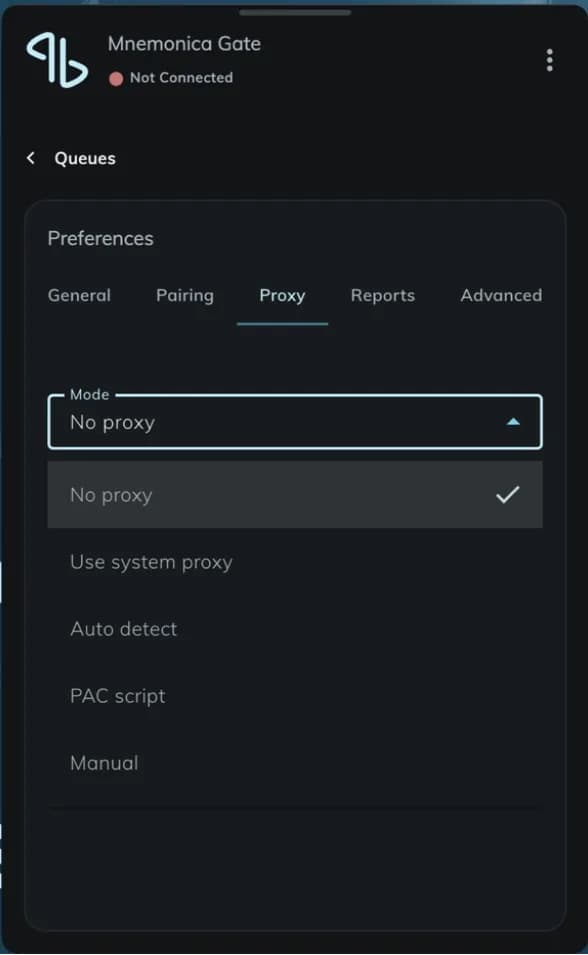
| Mode | Use it when |
|---|---|
| No proxy | You do not use a proxy. |
| Use system proxy | The Gate must follow the proxy settings of the operating system. |
| Auto detect | The network announces its proxy (WPAD or DHCP). |
| PAC script | You have the address of a PAC file. |
| Manual | You know the host, the port and the protocol of the proxy. Type them in the Gate. |
Supported proxies
- HTTP and HTTPS proxies: supported, with user name and password.
- SOCKS4 and SOCKS5 proxies: supported without authentication only. A SOCKS proxy that needs a user name and password rejects the connections of the Gate. Use an HTTP or HTTPS proxy instead.
- System, Auto detect and PAC modes: the Gate uses credentials for its live connection only if you type them in the proxy settings of the Gate.
If the Gate cannot connect
The Gate needs access to your Mnemonica server and to update.mnemonica.io. Read the firewall requirements.
If the Gate shows Could not reach the server, check your connection and your proxy settings. If it shows the error CERT_HAS_EXPIRED, read Expired Root Certificate.
Related articles
Pairing the Gate with browsers
Pair Mnemonica Gate with your browser using a 6-digit code, check the pairing status, and fix a Gate that cannot connect.
Manage your transfers in the Gate
Pause, resume, remove and retry transfers in the Mnemonica Gate window, and read the status messages.
What the Gate does when a transfer stops
How Mnemonica Gate recovers from network problems, sleep, a missing drive, a full system drive and a changed file.
Send a technical report to Mnemonica support
How Mnemonica Gate saves technical reports, what a report contains, and how to send one to support.