Troubleshooting: how to reset/remove Mnemonica Gate
Pair the Gate again, or remove and reinstall Mnemonica Gate on Windows or Mac.
- Projects
- ProductionArchive
- Updated

Gate versions previous to 4.0.0 can be unstable on some systems and some networks. If this occurs, use this guide.
First, pair the Gate again
If the Gate shows Not Connected, or the web app says Your Gate can't connect any more, you do not need to remove the Gate. Deauthorize it and pair it again.
Deauthorize the Gate
In the Gate, click the options button (⋮) and choose Deauthorize this Gate. You can also click Deauthorize this Gate in the Pairing tab of the Preferences.
Pair the Gate again
Pair the Gate with your browser with a new 6-digit code.
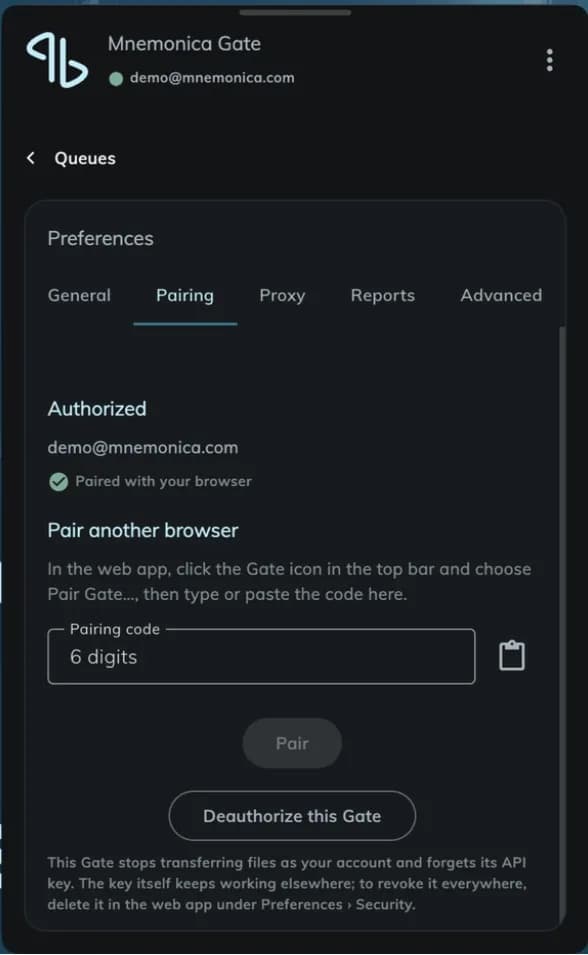
If the problem stays, remove the Gate and install it again. Before you remove it, support can ask you for the file gate.log. Read how to send a technical report.
Remove the Gate
Windows
Quit all the open instances of the Gate.
Remove the Gate with the Add or remove programs tool.
Remove the folder Mnemonica\Gate in your user data folder. If you used a version previous to 4.0.0, also remove the folder Local\Mnemonica-Gate in your user folder.
Restart the computer.
Download the latest version of the Gate from mnemonica.io and install it.
Mac
Quit all the open instances of the Gate. Open Activity Monitor and make sure that no Gate runs.
Move the Gate to the Trash.
Remove the folder ~/Library/Application Support/Mnemonica/Gate. If you used a version previous to 4.0.0, also remove the folder ~/Library/Application Support/Mnemonica-Gate.
Restart the computer.
Download the latest version of the Gate from mnemonica.io and install it.
Older versions
Gate versions previous to 4.0.0 are deprecated. Remove them completely from each system. To do this, complete the first four steps above.
Related articles
About Mnemonica Gate
What Mnemonica Gate is, when to use it, and how it handles uploads and downloads in Screening Rooms and Boxes.
Use the Gate with a proxy server
Set the proxy mode of Mnemonica Gate, and see which proxy types and authentication methods it supports.
Manage your transfers in the Gate
Pause, resume, remove and retry transfers in the Mnemonica Gate window, and read the status messages.
What the Gate does when a transfer stops
How Mnemonica Gate recovers from network problems, sleep, a missing drive, a full system drive and a changed file.