Send a technical report to Mnemonica support
How Mnemonica Gate saves technical reports, what a report contains, and how to send one to support.
- Projects
- ProductionArchive
- Updated
When a transfer fails, Mnemonica Gate saves a technical report for Mnemonica support.
Choose how reports are sent
Click the options button (⋮) and choose Preferences. Open the Reports tab.
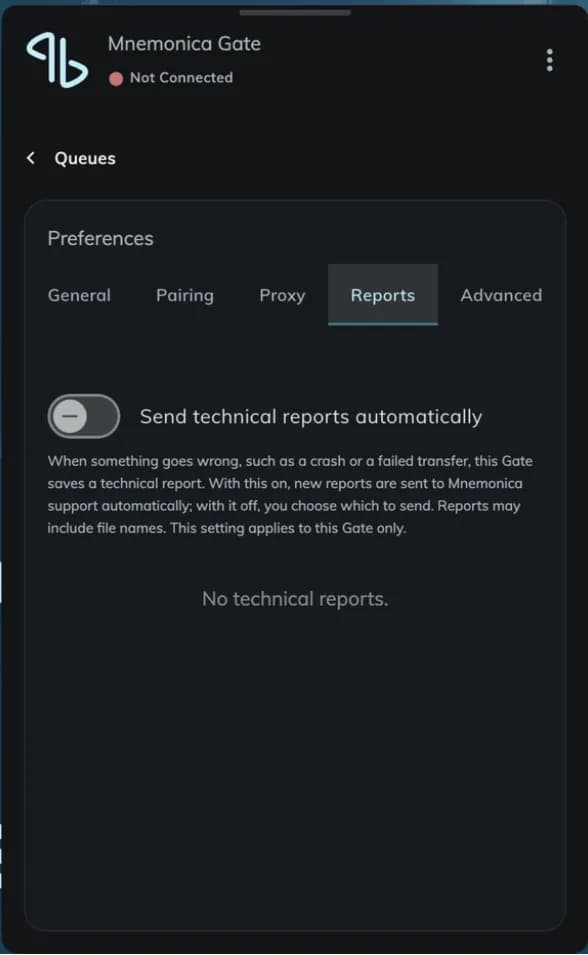
- If you turn on Send technical reports automatically, the Gate sends new reports to support.
- If you turn it off, the Gate sends nothing without your consent.
The setting applies only to this Gate. The footer of the Gate window shows how many reports you did not send.
Send a report yourself
A report can contain file names, folder paths and drive details. Read the report before you send it.
Open the failed file
In the Gate window, click the name of the failed transfer to see its files.
Send the details
Click Send details to support on the failed file. Before the Gate sends the report, you can see what leaves your computer.
Send the reference
Quote the reference of the report in your message to support. The reference is the first 8 characters of the report. Click Copy reference to copy it.
You can also save the report as a file and send it by email.
The log file
Support can also ask you for the file gate.log. Read where the Gate keeps its files.
Related articles
Manage your transfers in the Gate
Pause, resume, remove and retry transfers in the Mnemonica Gate window, and read the status messages.
Troubleshooting: how to reset/remove Mnemonica Gate
Pair the Gate again, or remove and reinstall Mnemonica Gate on Windows or Mac.
What the Gate does when a transfer stops
How Mnemonica Gate recovers from network problems, sleep, a missing drive, a full system drive and a changed file.
Pairing the Gate with browsers
Pair Mnemonica Gate with your browser using a 6-digit code, check the pairing status, and fix a Gate that cannot connect.