Use your iCloud Keychain passkey in Chrome on a Mac
Let Google Chrome on your Mac use the Mnemonica passkey that you keep in iCloud Keychain.
- Projects
- ProductionArchive
- Updated
You use Google Chrome on your Mac. Your Mnemonica passkey is in iCloud Keychain, for example because you made it on your iPhone or in Safari. But when you click Use passkey in Chrome, Chrome does not show it. Chrome can use the passkeys in iCloud Keychain: you must allow it one time. This article shows how, in three short steps.
What you need
- A Mac with macOS 13.5 Ventura or later.
- Google Chrome 118 or later.
- iCloud Keychain turned on, with the Apple Account that has your passkey.
- Touch ID or your Mac password, to unlock the passkey.
For the other devices and browsers, see Passkey requirements.
You do not need an extension. The iCloud Passwords extension in the Chrome Web Store fills passwords, not passkeys. Mnemonica has no passwords, so you do not need it for Mnemonica.
Sign in with your iCloud Keychain passkey
Make sure that iCloud Keychain is on
- On your Mac, click the Apple menu, then click System Settings.
- Click your name at the top of the sidebar.
- Click iCloud.
- Under Saved to iCloud, click Passwords. On macOS 13 and 14, click Passwords & Keychain.
- Make sure that Sync this Mac is on.
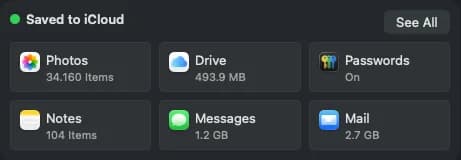
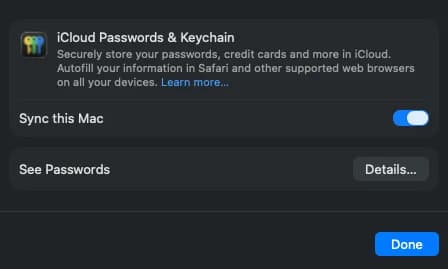
Make sure that iCloud Drive is on too: on the iCloud page, the Drive tile must not show Off. Chrome uses iCloud Drive to know that iCloud is ready.
Update Chrome
- In Chrome, click the Chrome menu (⋮) at the top right.
- Click Help / About Google Chrome.
- If Chrome shows Relaunch, click it.
Sign in to Mnemonica with your passkey
- Open mnemonica.io in Chrome.
- Click Use passkey. Chrome opens the window Use a saved passkey for mnemonica.io.
- Select your email address. Below it, Chrome shows Apple Passwords: this is your passkey in iCloud Keychain.
- If macOS asks for permission for Chrome, click Allow.
- Touch the Touch ID sensor, or type your Mac password.
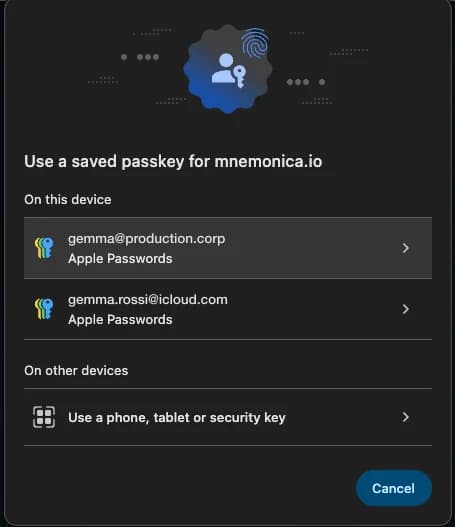
You are signed in, with a strong session. Next time, you only touch the Touch ID sensor.
Save a new passkey in iCloud Keychain from Chrome
If you add a passkey to Mnemonica in Chrome, Chrome saves it in iCloud Keychain when iCloud Drive is on. The passkey then also works in Safari and on your iPhone and iPad.
Sometimes Chrome asks where to save the passkey. Select iCloud Keychain. If you select your Chrome profile, the passkey stays only in Chrome on this Mac.
Common problems
Your Chrome or your macOS can be too old. Update Chrome (step 2). Then check the macOS version: click the Apple menu, then click About This Mac. If it is older than macOS 13.5, update macOS or use Safari.
Chrome did not find the passkey in iCloud Keychain. Make sure that the Mac uses the same Apple Account as the device where you made the passkey. Then make sure that Chrome has the permission: see 'I clicked Don't allow by mistake' below. To sign in now, you can scan the QR code with the camera of your iPhone.
iCloud Keychain is off on this Mac. Click the button in the message to open System Settings. Then do step 1.
macOS asks only one time. To change your answer, open System Settings / Privacy & Security / Passkeys Access for Web Browsers. Turn on Google Chrome. Then click Use passkey again.
Type your Mac password. If you have an Apple Watch, you can also double-click its side button.
Do you need help?
If the passkey still does not work in Chrome, write to support@mnemonica.com. Tell us the macOS version and the Chrome version.
Related articles
Passkey requirements
Passkeys require a minimum version of the operating system and of the browser.
Signing in to Mnemonica
Sign in with an email link, Google, Apple, a passkey or the Mnemonica app, on the web and on your phone.
New Mnemonica sign-in: guide for Guests
From 17 October 2026, you sign in to Mnemonica in a new way.