Original files management in Screening Rooms
Choose whether a Screening Room keeps the original uploaded files, and learn how to download, send, or purge them.
- Projects
- Production
- Roles
- ManagerOperator
- Updated
When you upload files to a Screening Room, Mnemonica checks the properties of each file to verify that it complies with streaming standards.
If the file format matches streaming standards, Mnemonica takes no action. The asset is immediately available for indexing or streaming. If the file does not match streaming standards, an encoding process runs.
At any time, Team Members can decide how a Room deals with the original files that are not streamable. There are two choices:
- Delete them when the encoding is complete.
- Keep them in the Room.
If you keep the original files, the size of the Project can increase dramatically.
To choose, open the Room Settings window and turn the Keep originals switch on or off. If the switch is on, Mnemonica stores the original uploaded files with their streaming versions.
In a Room, a rosette icon in the top right corner of the media card shows that the asset has an original file.

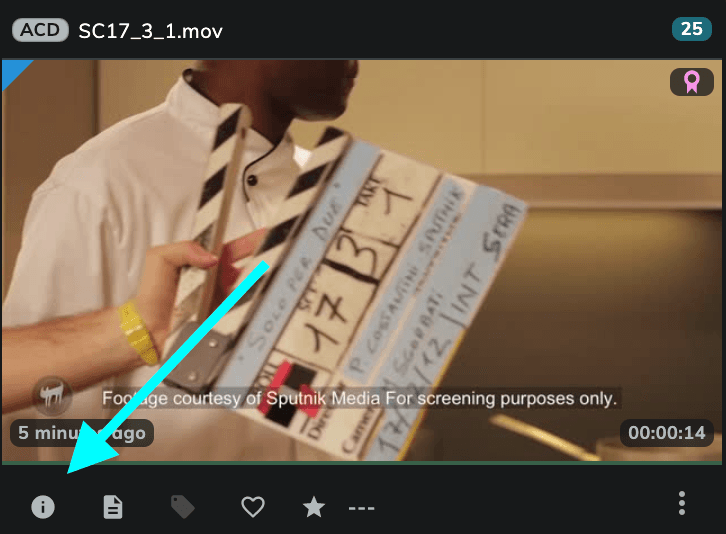
To get the media details, click the info button in the lower-left corner of the media card.
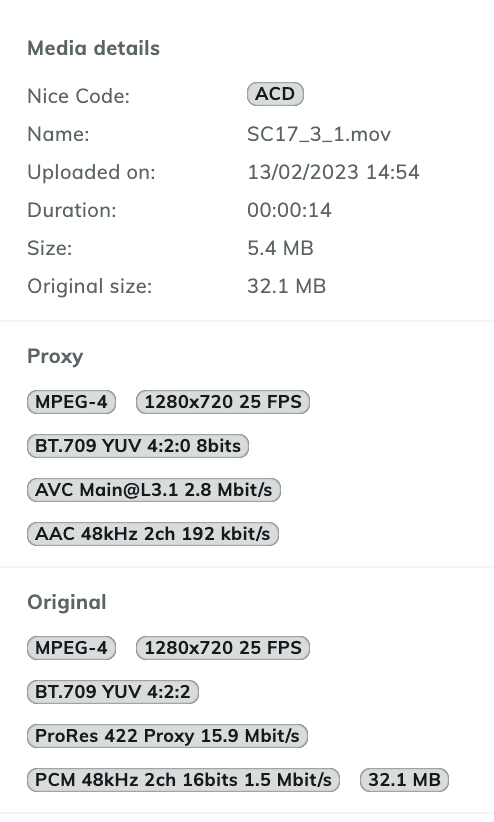
The complete file metadata is on the Player page, in the "Media Info" tab.
Managing originals
When Mnemonica stores original files, you can:
- Keep them for further use or as an on-the-cloud backup.
- Download them.
- Send them via Box.
- Delete them.
Original files are separate assets. You can manage them independently from their streaming proxy version. To download assets or add assets to a Box, specify in the dialog if the action is for the Proxy files, the Original files, or both.

Downloading files from a Screening Room.

Adding files to a Box.
Purging originals
If the size of a Project becomes a problem, you can delete the original files at any time with the Purge originals command. It is available for:
- An entire Project.
- An entire Screening Room.
- Single or multiple media in a Screening Room.
If you delete an original file while Mnemonica sends it through a Box, Mnemonica does not delete the file until the Box expires.
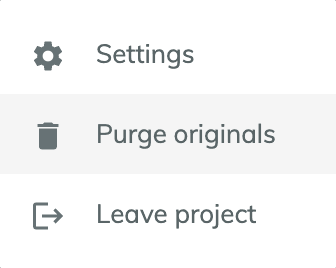
Purging originals of an entire Project.
Purging originals keeps all the proxies. The number of elements in a purged Screening Room does not change.
Related articles
Upload media to a Screening Room
Upload files to a Screening Room, and learn about folder uploads, upload errors, and illegal characters in filenames.
Download content from a Screening Room
Download media from a Screening Room, one file or a whole selection, and learn who can download.
Alias Screening Rooms
Learn what Alias Rooms are, what they can and cannot do, and how to use them to share the same content with different audiences.
Create a Screening Room
Create a Screening Room in a Project and choose its type, download, comments and originals settings.