Screening room
Overlay Watermark
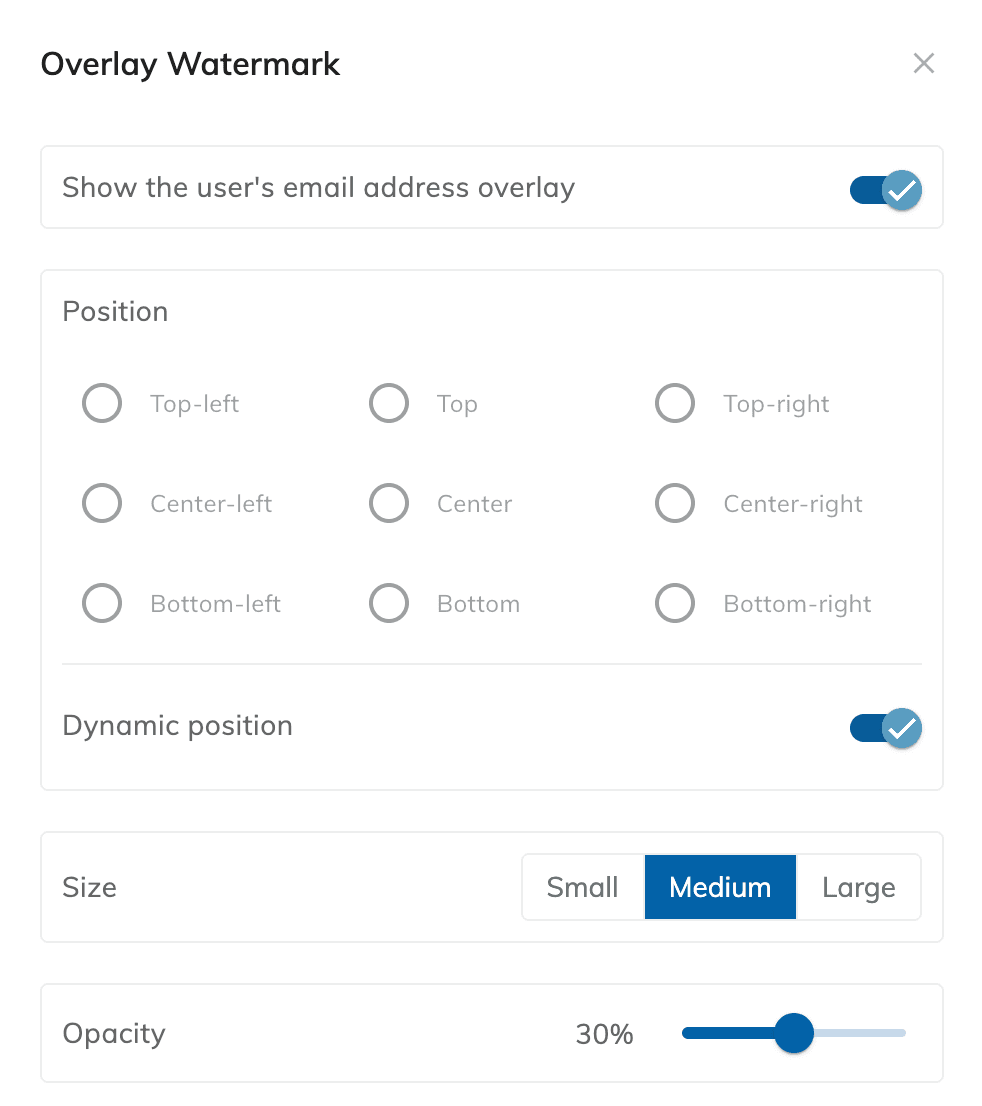
Show the viewer's email address over playback in real time, and set its opacity, size, and position.
- Projects
- ProductionArchive
- Roles
- ManagerOperatorPower Guest
- Updated
In Mnemonica, each Screening Room can overlay the email address of the user over any clip or still in real time. You can set:
- The opacity, from 10% to 50%. This range suits any background image.
- The size of the font: Small, Medium, or Large.
- The position: one of nine positions or a dynamic positioning system.
A Room can have an overlay watermark and a Burned-in Watermark at the same time.
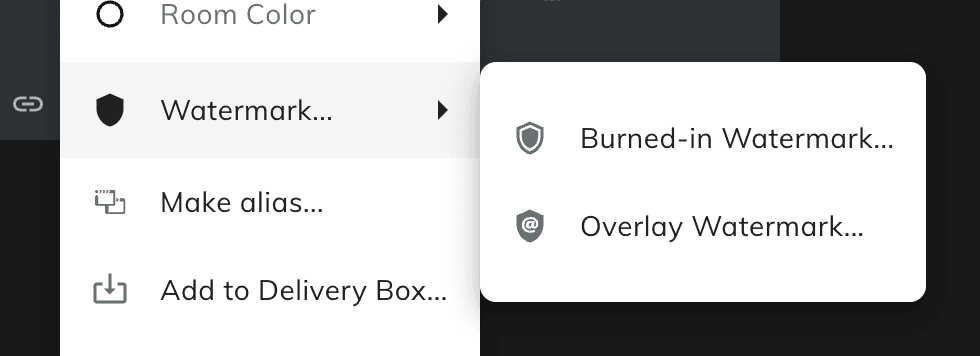
Opening the Overlay Watermark window
To open the Overlay Watermark window, do one of these:
- Click the options button (⋮) on the Room card in the Rooms page. Select Watermark / Overlay Watermark....
- Click the watermark icon (shield) on the right of the header when you are in a Screening Room.
- Click the watermark icon in the header of a Room detail in Guests management.
See also Burned-in Watermark.